You have a great logo. Now you want it embroidered on uniforms, hats, or custom merchandise. But before a single thread is sewn, your logo needs to be digitized — converted from a flat image into a stitch file that an embroidery machine can actually read and execute.
In this guide, we walk you through exactly how logo digitizing works, what the process looks like step by step, the difference between doing it yourself and hiring a professional, and how to make sure your embroidered logo comes out looking exactly as it should.
Key takeaway: Logo digitizing is not just resizing or tracing an image. It is a technical craft that maps out every individual stitch — direction, density, type, and sequence — to produce a clean, durable result on fabric.
What Does It Mean to Digitize a Logo?
Embroidery machines do not read JPEG, PNG, or PDF files. They read stitch files — proprietary formats that contain precise instructions for every movement the needle makes. Digitizing is the process of creating those instructions from your logo artwork.
A skilled digitizer uses specialist software to manually map out stitch paths, select stitch types (satin, fill, run), set densities, and plan the sequence in which each element is sewn. Done well, the result looks sharp and professional. Done poorly, it results in thread gaps, puckering, misaligned colors, and wasted garments.
Common output formats include DST (Tajima), PES (Brother), JEF (Janome), VP3 (Husqvarna), and EMB (Wilcom). Your embroiderer will tell you which format their machine requires.
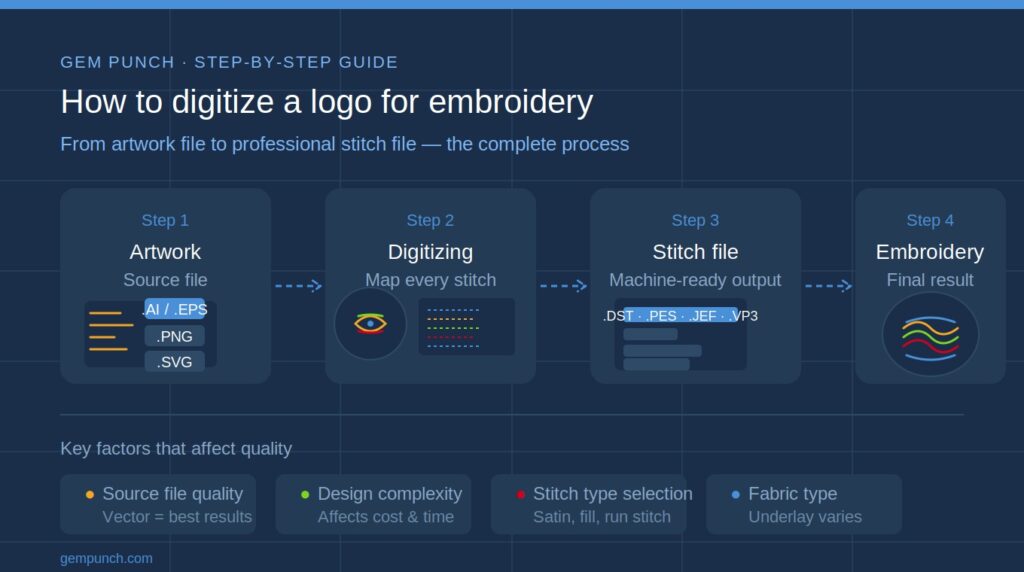
Step-by-Step: How Logo Digitizing Works
Step 1 — Prepare Your Artwork
The quality of your source file directly affects the quality of your digitized output. Always provide the clearest, highest-resolution version of your logo possible. A vector file (AI, EPS, or SVG) is ideal because it scales without losing quality and has clearly defined edges and colors.
If you only have a raster image (PNG, JPG), make sure it is at least 300 DPI and not blurry, pixelated, or compressed. The digitizer needs to clearly see every element of the design — fine lines, small text, and color boundaries all matter.
Step 2 — Assess the Design for Embroidery
Not every element of a logo translates perfectly to embroidery. A good digitizer reviews the artwork before starting and flags any elements that may need to be simplified or adapted:
- Very thin lines (under 1mm) may need to be thickened to stitch cleanly
- Small text (under 4mm tall) often needs adjustment to remain legible
- Photographic gradients must be interpreted using fill patterns or stitch angles
- Extremely fine detail may need to be simplified to avoid thread buildup
This assessment stage is what separates a professional digitizer from an automated tool. It requires knowledge of how thread behaves on different fabrics and at different scales.
Step 3 — Set Up the Digitizing File
The digitizer opens the artwork in specialist software (Wilcom, Hatch, Pulse, or similar) and begins mapping the design. They set the canvas to the correct output size — because a logo digitized for a left chest placement is set up very differently from the same logo intended for a jacket back.
Step 4 — Map Stitch Types to Each Element
Each part of the logo gets assigned a stitch type based on what it represents:
| Design Element | Stitch Type Used |
| Borders and outlines | Run stitch |
| Lettering and thin fills | Satin stitch |
| Large filled areas | Fill / Tatami stitch |
| Raised 3D elements | Puff / foam underlay |
| Fine detail lines | Bean / triple run stitch |
Step 5 — Set Stitch Direction and Density
Stitch angle dramatically affects how the finished embroidery catches light and appears to the eye. Density determines how tightly packed the stitches are — too dense and the fabric puckers; too sparse and the base fabric shows through. This is one of the most technically demanding parts of digitizing and where expertise matters most.
Step 6 — Plan the Stitch Sequence
The order in which elements are stitched matters. A good stitch sequence minimizes thread trims, reduces jump stitches (which need to be cut and can look untidy), and ensures underlying elements do not show through overlapping ones. Color changes also need to be sequenced logically to reduce machine stops.
Step 7 — Add Underlay
Underlay stitches are laid down beneath the main stitching to stabilize the fabric, provide a foundation for the top stitches, and improve the overall appearance of the embroidery. Different underlay types are used for different fabric types — a knit polo requires different underlay to a structured cap.
Step 8 — Export and Test
Once the file is complete, it is exported in the required machine format and ideally test-stitched on a similar fabric before production. A stitch-out reveals any issues with density, registration, or sequence that need to be corrected before the full order runs.
DIY Digitizing vs Hiring a Professional
You have two options when it comes to digitizing your logo: do it yourself using software, or hire a professional digitizing service. Here is an honest comparison:
| DIY Digitizing | |
| Cost | Free to ~$50/month (software subscription) |
| Time to learn | Weeks to months for quality results |
| Output quality | Variable — steep learning curve |
| Best for | Hobbyists and very simple designs |
| Software options | Ink/Stitch (free), Hatch, Wilcom |
| Professional Digitizing | |
| Cost | $10–$100 per design (one-time fee) |
| Turnaround | 12–24 hours standard |
| Output quality | Consistent, production-ready |
| Best for | Business logos, commercial use, complex designs |
| File ownership | You keep the file for unlimited reorders |
For business logos and branded embroidery, professional digitizing costs almost always deliver better results at a lower total cost when you factor in the time and learning curve of DIY. The digitizing fee is a one-time expense — the file is yours forever and works for every reorder.
Rule of thumb: If you are embroidering for personal use or learning the craft, DIY digitizing is a great skill to develop. If you are embroidering for customers, uniforms, or merchandise, hire a professional.
What File Should You Send for Digitizing?
The format you provide has a big impact on digitizing quality and speed. Here is what to send, in order of preference:
- Vector file (AI, EPS, SVG, PDF with vector data) — always the best option
- High-resolution PNG or TIFF at 300 DPI minimum with transparent background
- High-resolution JPEG at 300 DPI — acceptable but not ideal
- Low-resolution or compressed images — avoid if at all possible
If your logo only exists as a low-resolution image, ask your digitizing service about vector conversion first. Converting to vector before digitizing produces significantly better stitch output.
Common Digitizing Mistakes to Avoid
- Providing a blurry or low-resolution source file — digitizers cannot add detail that is not there
- Assuming automatic digitizing software produces the same quality as manual digitizing — it does not
- Not specifying the intended placement size — a logo digitized for a 4-inch width will not work at 1.5 inches
- Forgetting to confirm the output file format before ordering — check with your embroiderer first
- Skipping the test stitch-out on a bulk order — one test run prevents thousands of dollars in wasted garments
- Using a service that retains file ownership — always confirm you receive the stitch file
How Long Does Digitizing Take?
Turnaround time varies by provider and complexity. For a professional digitizing service:
- Standard turnaround: 12–24 hours for most designs
- Same-day service: 4–12 hours, typically with a rush surcharge of 25–35%
- Rush service: Under 4 hours, with surcharges of 40–75%
For most orders, standard turnaround is sufficient and saves you meaningfully on cost. Plan your digitizing at least 24–48 hours before your embroidery production deadline.
Frequently Asked Questions
Can I use a PNG file for embroidery digitizing?
Yes, but a high-resolution PNG (300 DPI or above) is needed for good results. A vector file is always preferable if available. Low-resolution PNGs result in lower quality digitizing output.
How much does it cost to digitize a logo?
Most professional digitizing services charge between $10 and $50 for standard logos. Complex designs with high stitch counts, fine detail, or many colors can cost $50–$100+. See our full embroidery digitizing cost guide for a detailed breakdown.
Can I reuse a digitized file for multiple orders?
Yes — this is one of the biggest advantages of professional digitizing. Once the file is created, you own it and can use it for unlimited reorders at no additional digitizing cost.
What is the minimum text size for embroidery?
As a general rule, uppercase letters should be at least 4mm tall and lowercase at least 3mm. Below these sizes, individual letter forms become difficult for machines to reproduce cleanly. Your digitizer may adjust letterforms slightly to ensure legibility.
Do I need to digitize my logo differently for different products?
Sometimes. A logo digitized for a flat woven polo shirt may need adjustment for a structured cap, a thick fleece, or a terry towel. Different fabrics require different underlay strategies and stitch densities. Always tell your digitizer what product the design will be applied to.
Final Thoughts
Digitizing a logo for embroidery is a technical process that sits between your artwork and the final embroidered product. Get it right — with clean source files, professional execution, and a proper test stitch-out — and your embroidery will look sharp and professional on every garment, badge, or patch you produce.
Get it wrong and you will spend more fixing problems than you saved by cutting corners on digitizing. For commercial and business use, professional digitizing is almost always the right call.
Ready to digitize your logo? Gem Punch offers professional embroidery digitizing with 24-hour turnaround, free revisions, and full file ownership from $10. Get a free quote at gempunch.com.